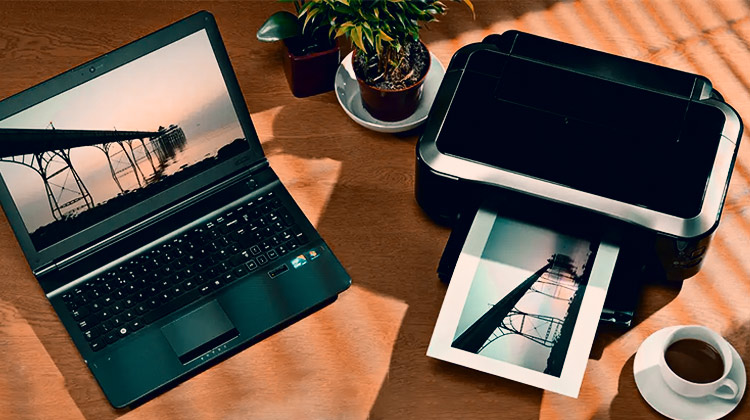
Connecting your wireless printer doesn’t need to be complicated! Whether you’re using a computer, smartphone, or tablet, getting your printer linked to Wi-Fi allows for hassle-free printing, freeing you from the mess of cables. Follow these easy steps to get your wireless printer connected quickly!
📋 What You’ll Need
Before you start, make sure you have:
-
A stable Wi-Fi network
-
Your wireless printer (powered on and ready)
-
A device (computer, smartphone, or tablet) connected to the same Wi-Fi network
-
Your Wi-Fi password
🔧 Step-by-Step Wireless Printer Connection
-
Power On Your Printer
Ensure your printer is turned on and ready. If your printer has a display screen, check for a “Ready” message indicating the printer is ready to connect. -
Activate Wi-Fi Mode
Look for the Wi-Fi or Wireless button on your printer. Press it to enter the connection mode. Some printers will automatically display available networks, while others may require you to navigate through the menu. -
Choose Your Wi-Fi Network
On your printer’s control panel, select your Wi-Fi network (SSID).
Enter your Wi-Fi password carefully.
After a few moments, the printer should confirm the connection by displaying a message or showing a steady Wi-Fi light. -
Install Printer Software on Your Device
Now that your printer is connected, it’s time to install the required software on your computer or mobile device:-
Visit the official website of your printer’s brand.
-
Download the appropriate software or app for your printer model.
-
Follow the on-screen instructions to finish the process.
Tip: Many printer brands offer apps that allow you to connect your printer directly, so you may not even need to use a computer.
-
-
Add the Printer to Your Device
-
On Windows: Go to Settings > Devices > Printers & Scanners > Add a Printer.
-
On macOS: Open System Preferences > Printers & Scanners > Add (+).
-
On Mobile Devices: Use the app or select the printer from your print options menu.
-
✅ Test & Print!
Print a test page to confirm everything is working as expected. If it prints correctly, your wireless printer connection is ready! Now, you can enjoy wireless printing from any device connected to the same network.
💡 Pro Tips for a Smooth Printing Experience:
-
Keep Firmware Updated: Regularly check for updates via the printer menu or app to keep your printer performing well.
-
Stay Within Wi-Fi Range: Ensure your printer is within range of your Wi-Fi network to avoid interruptions in the connection.
-
Use the Official App: Many printer manufacturers offer apps for easy connection and direct printing from your phone or tablet.
ℹ️ Disclaimer
This guide is for informational purposes only. We are not affiliated with any specific printer manufacturer. For detailed, model-specific assistance, always consult the official website of your printer’s brand.