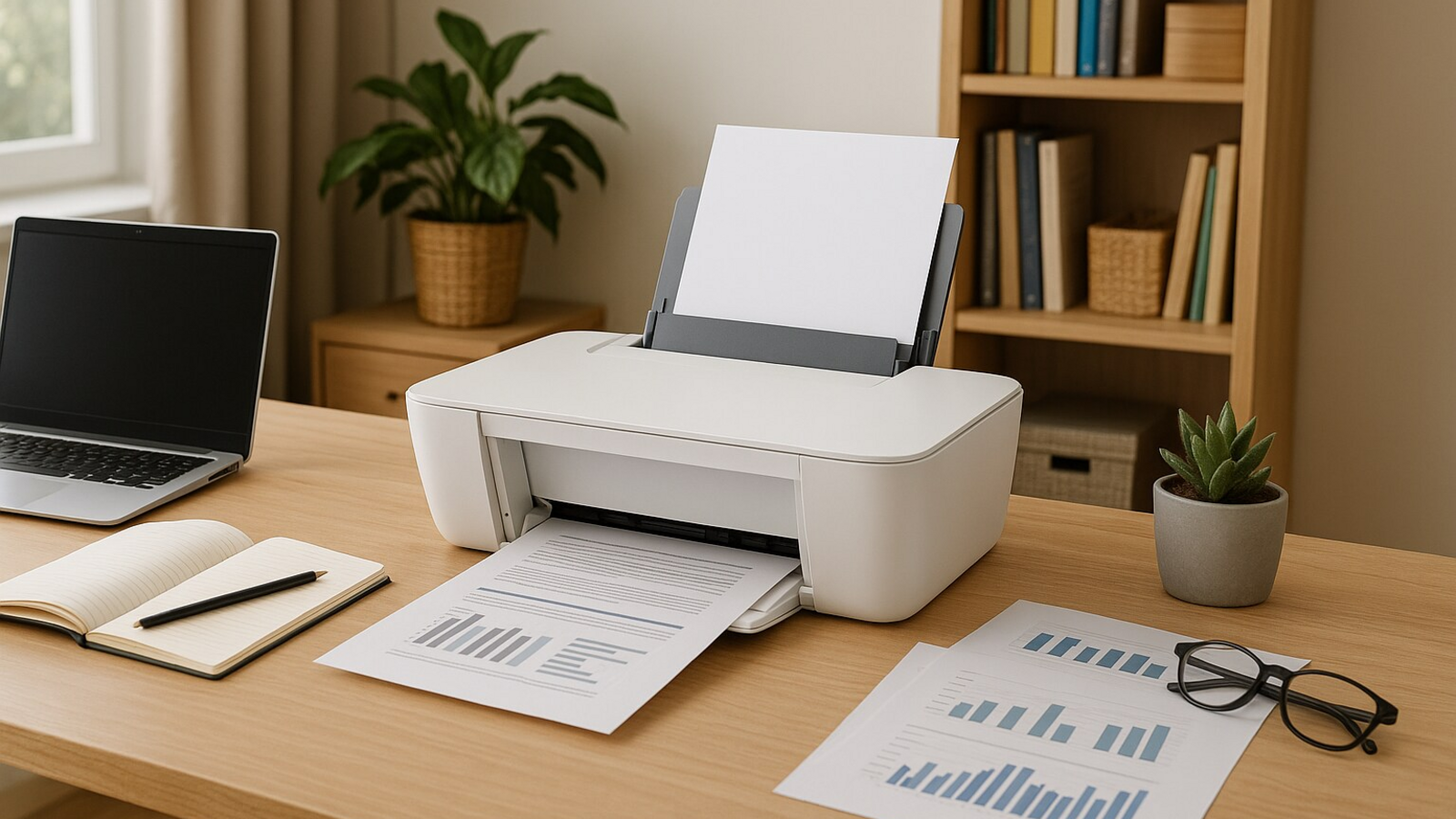
Getting your printer working shouldn’t be difficult. Whether you’re using a USB, wireless, or network printer, this guide gives you all the details you need—from the initial configuration to resolving common connection issues.
Our goal is to provide clear, simple steps to help you configure and maintain your printer effortlessly, especially for Windows 10 and Windows 11 users.
⚠️ Disclaimer
This guide is for informational purposes only. We are not affiliated with any specific printer brands or software providers. We do not offer software downloads, technical support, or repair services. For product-specific guidance, please refer to your printer’s official website.
1️⃣ Initial Printer Configuration: Getting Started
📦 Unbox and Prepare Your Printer
-
Remove all packaging materials.
-
Install ink or toner cartridges.
-
Load paper into the printer’s tray.
-
Plug in the power cable and turn the printer on.
🔌 A. Configuring a USB Printer
-
Step 1: Don’t connect the USB cable yet.
-
Step 2: Visit the printer manufacturer’s website and download the latest drivers and software.
-
Step 3: Run the installer as an administrator.
-
Step 4: Connect the USB cable when prompted by the configuration wizard.
-
Step 5: Complete the process and test the printer by going to Settings > Devices > Printers & Scanners.
📶 B. Configuring a Wireless Printer
-
Step 1: Connect to Wi-Fi
-
Use the WPS button method (if supported) or select Wi-Fi options from the printer’s menu to join your network. Enter your Wi-Fi password.
-
-
Step 2: Install Software
-
Download the full software package from the official website.
-
Run the installer and choose the wireless connection option.
-
Allow the software to detect your printer and finish the process.
-
Print a test page to confirm the connection.
-
🌐 C. Configuring a Network (Ethernet) Printer
-
Connect the printer directly to your router using an Ethernet cable.
-
Ensure it receives an IP address (displayed on the printer’s screen).
-
Download and install the official drivers from the printer manufacturer’s website.
-
During the configuration, select the Network/Ethernet option.
-
If needed, manually add the printer using its IP address from Settings > Add Printer > TCP/IP.
2️⃣ Printer Not Responding? Quick Fixes
If your printer shows as “offline” despite being connected:
-
Check power and cable connections.
-
Restart your printer, router, and computer.
-
Open the Print Queue and make sure the “Use Printer Offline” option is unchecked.
-
Clear any stuck print jobs.
-
Ensure both your PC and printer are connected to the same Wi-Fi network.
-
Restart the print spooler service by pressing Windows Key + R > typing services.msc.
3️⃣ Keeping Your Printer Drivers Up-to-Date
🧩 Understanding Printer Drivers
-
PCL: Great for basic text printing.
-
PostScript: Ideal for image-heavy documents.
-
XPS: Microsoft’s default option for document printing.
Recommendation: Always use the driver recommended by your printer manufacturer for optimal performance.
🛠 Solving Driver Issues
-
If you see a “driver unavailable” error:
-
Check for Windows updates and install available printer drivers.
-
Visit the manufacturer’s website for the latest driver.
-
Uninstall the old driver via Device Manager.
-
Restart your PC and install the new driver.
-
4️⃣ Reconnecting Your Printer After Wi-Fi Changes
If you’ve updated your Wi-Fi settings or changed the Wi-Fi password:
-
Reconnect your printer to the new Wi-Fi via the printer’s Wi-Fi options.
-
Remove the printer from Settings > Printers & Scanners and re-add it.
-
Windows should detect the updated printer. After detection, print a test page to confirm everything is working.
✅ Final Thoughts: Print with Confidence
While printer configuration and connectivity can be challenging, following these simple steps will make the process smooth. Whether you’re working with a USB, wireless, or network printer, these solutions will help ensure your devices stay connected and functional.
For specific guidance related to your printer model or to download software, always visit the official website of your printer manufacturer.